MacOS Shortcuts, argh
MacOS Shortcuts, I really (I mean really) want to love you, but yall need to to simmer down.
I put together a super simple shortcut that resizes images selected in finder and changes format to JPG for including in blog posts. Good enough.
On niggle that I’ve been working around is that the output of the image
conversion used the file extension .jpeg. Meh, no big deal. Except hugo’s
default config doesn’t handle .jpeg files, it wants .jpg.
Ok, that should be easy enough to change, right? There’s gotta be a config in the short conversion action for file extension, right?
Of course not. As I kinda guessed, you need to brute force it and rename the file literally. Still, that can’t be hard, right?
On the surface, nope. But the devil is in the details. Started off with some help form Gemini. It seemed to get most of the way there, but a few missteps from it getting confused between MacOS and iOS and things went off the rails. It eventually told me the guaranteed way to pull off the rename was have short cuts run a shell script. Ugh, nope.
Started over with claude. Gave it a screen shot of the working shortcut (minus the rename stuff) and told it what I wanted. It went down the same path, but didn’t get tripped up with os-specific differences in shortcuts. I got nearly to the finish line and couldn’t get the part that gets the name from the original file for the resize part. Turns out I had it right, but shortcuts interface is dumb; variable name changes from general object name to property for attributes other than Name. So, it looked like Converted Image was the object when it was really the Converted Image’s Name property. Argh.
Here’s the resulting shortcut…
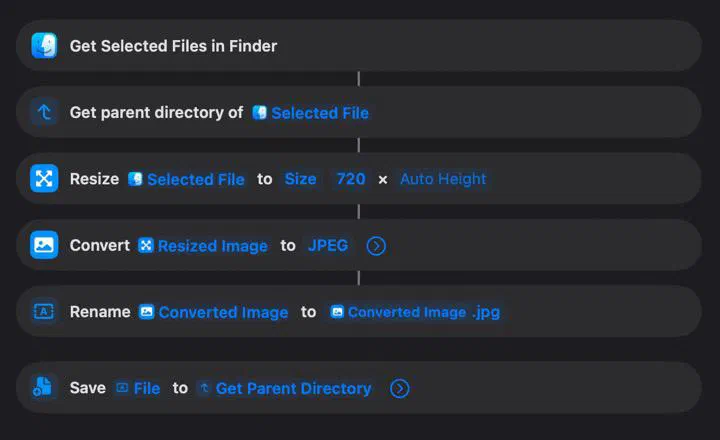
(of course, the screen shot after running through the shortcut 😉)
So, lost an hour and half doing that simple automation improvement. I really want to like shortcuts, but each time I’ve tried, it ends up taking way more effort than I’d like. I’d hope it’ll get easier and less frustrating with more practice, but I’m not that optimistic.